How to gather insights into confidence and communication skills in my organisation
Let's Talk - Book a no-obligation discovery call
How to gather insights into confidence and communication skills in my organisation
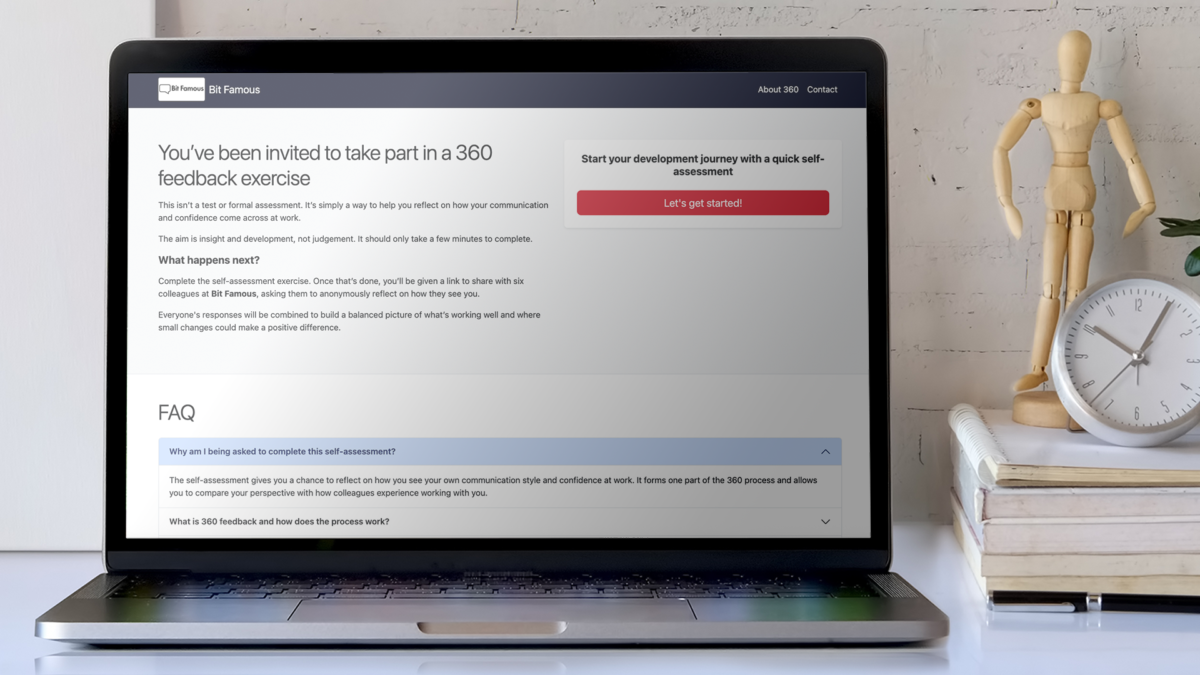
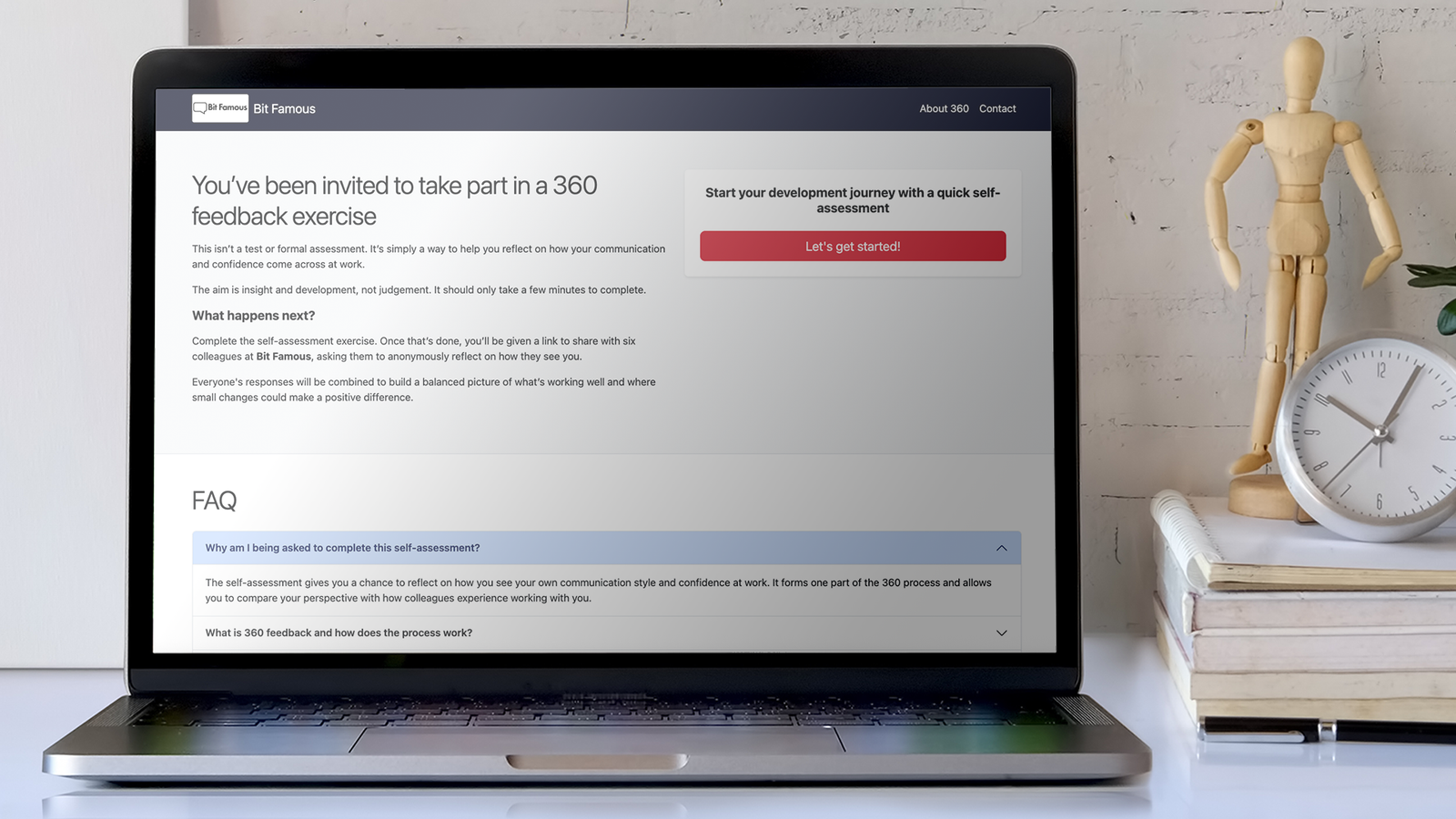
Bit Famous 360 is our online 360-degree feedback tool built to help organisations understand and benchmark their people’s confidence and communication skills.
It makes gathering 360-degree feedback in a simpler, more useful, and far less intimidating way — giving individuals and organisations actionable insights they can actually use.
The tool helps colleagues compare how they see themselves with how others actually experience them:
- The effectiveness and impact of their communication skills
- Their ability to connect with audiences with clarity
- How they represent your organisation
- Giving feedback, decision-making and how someone handles a challenge.
If these are blind spots for some of your colleagues, our 360 process will help bring them into view.
The aim isn’t to label people or catch them out. It’s to help them reflect, spot their strengths and find a few areas where small changes could make a real difference.
The tool is also flexible. Question sets can be fully tailored to reflect your organisation, your values and the behaviours that matter most in your world. It can be used with one colleague or several hundred.
Try Bit Famous 360 today
Get in touch to discuss a tailored version for your organisation, or how Bit Famous 360 could sit alongside coaching, training or a wider development programme.
Let's Talk - Book a no-obligation discovery call
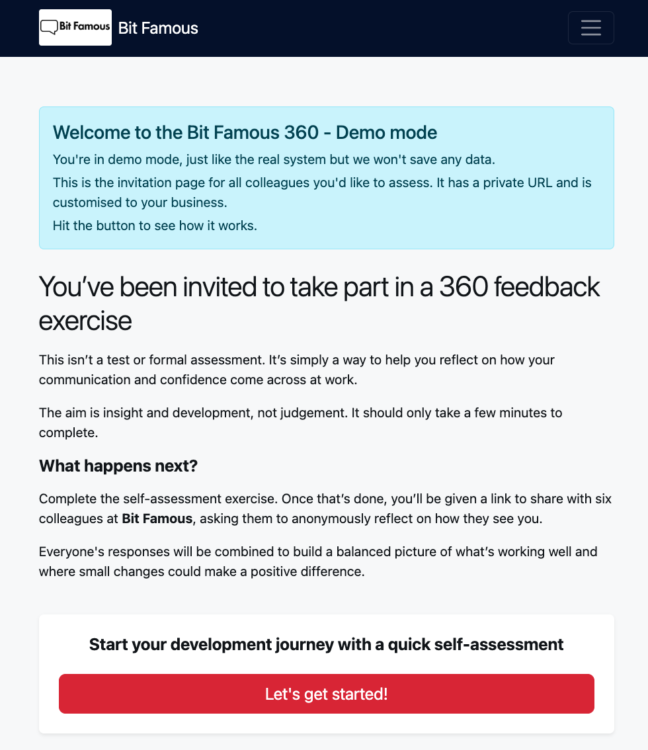
See the Bit Famous 360 demo
FREE resources for leaders and people professionals from Penny Haslam and Bit Famous
Share this page
Practical tools and advice to build confident, collaborative and high-performing teams
Read more- Team performance

How to give praise at work that feels genuine, builds confidence and motivates people

How to calm nerves before a work presentation
How to gather insights into confidence and communication skills in my organisation

How to host a meeting that will set you apart and progress your career

How low confidence shows up as underperformance at work

Measuring Workplace Confidence – What happens when you teach self-belief?

Inside the study: what we’ve learned from mastermind groups in police leadership
How to encourage colleagues to share knowledge, solve problems and learn from each other at work

The value of val-yous: why reflecting on personal values can boost your colleagues confidence and sharpen decision making
Workplace mastermind groups: How to bring colleagues together to share expertise, solve problems and develop their careers

Shh… The silent workplace confidence crisis
Outperform and impress: 5 Meeting hosting hacks that will set you apart

How to be better at speaking up in meetings at work

How to give a work presentation without using slides
Where people professionals share the great work they do!

Bit Famous 360 admin instructions
The system comes with a simple admin panel to help you quickly and simply gather the data you need.
How to add a colleague to Bit Famous 360
To invite a colleague to complete their own 360 self-review:
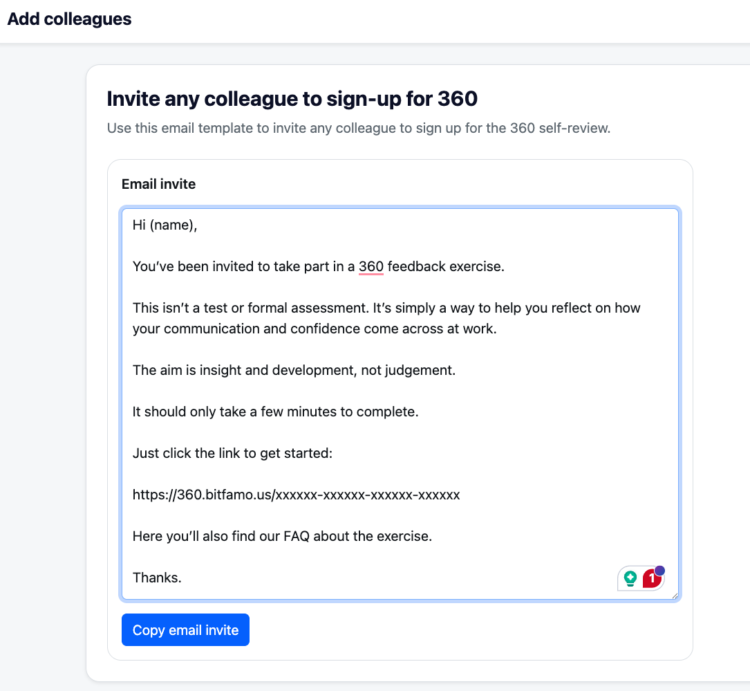
- In the Admin area click Add Colleagues.
- On this page, you’ll find an email template you can use to invite colleagues to sign up for the 360 self-review.
- Click Copy email invite.
- Paste the copied text into a blank email in your own email system.
- Send the email to the colleague or colleagues you want to invite.
Important: The link in the email is universal, so you can send it to multiple colleagues.
Once a colleague completes the 360-degree feedback form, they will receive a unique link. They then share that link with others to request colleague feedback.
How to manage colleagues and check their progress
Colleagues who have submitted a self-review will automatically appear in the system.
To check their progress in the admin area:
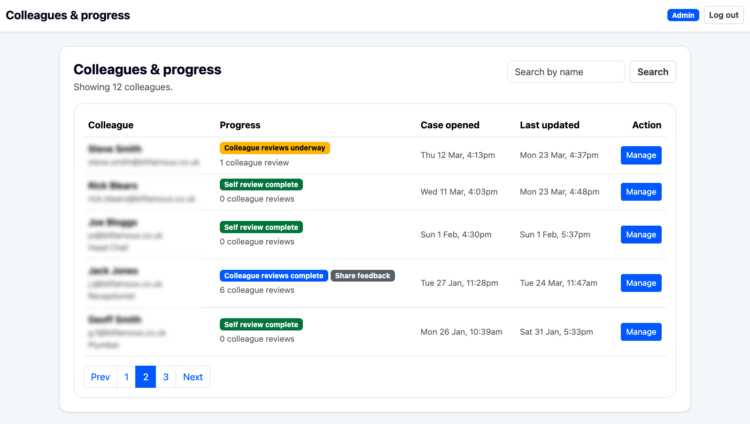
1. Click Colleagues and progress.
2. You will see a list of colleagues who have started the 360-degree feedback process.
3. The list will show the stage each colleague is at. For example, it may show Self-review complete.
4. You will also see how many colleague reviews have been submitted for each person.
5. Click Manage for more detailed information about that colleague’s progress.
How to chase up colleague reviews
To request more colleague reviews for someone already in the system:
- Go to Colleagues and Progress.
- Find the individual you want to chase reviews for.
- Click Manage next to their case.
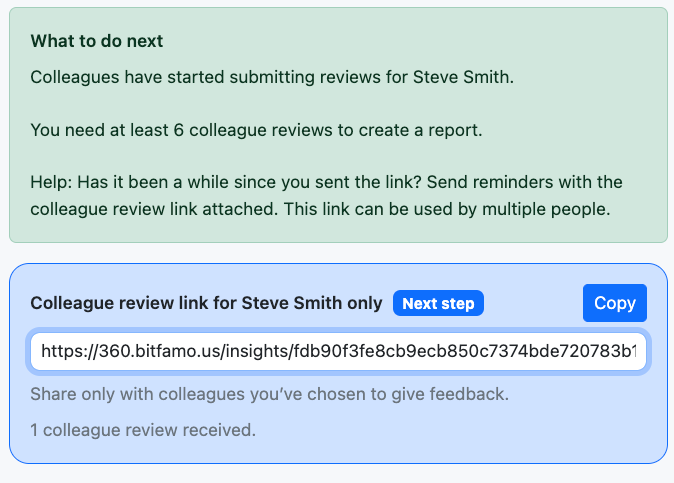
- You will find a Colleague review link. This is a unique link that others can use to share feedback about that individual.
- Click Copy.
- Share the copied link with the people you want to invite to provide additional feedback.
How to get the finalised 360-degree feedback report
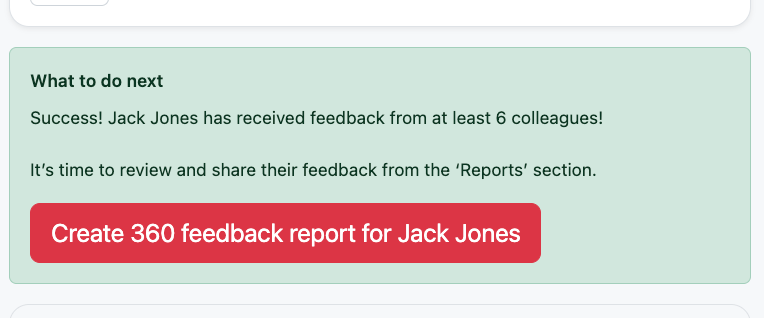
A finalised 360 feedback report will only become available once at least six people have submitted feedback for an individual.
To check whether the report is ready:
- Go to Colleagues and Progress.
- Find the individual you want to check and click Manage.
- Once at least six colleague reviews have been completed, the finalised 360 feedback report will become available in the system.